> ## Documentation Index
> Fetch the complete documentation index at: https://unstructured-53-docs-243-plugins.mintlify.site/llms.txt
> Use this file to discover all available pages before exploring further.
# S3
If you're new to Unstructured, read this note first.
Before you can create a source connector, you must first [sign up for Unstructured](https://platform.unstructured.io) and get your
Unstructured API key. After you sign up, the [Unstructured user interface](/ui/overview) (UI) appears, which you use to get the key.
To learn how, watch this 40-second [how-to video](https://www.youtube.com/watch?v=FucugLkYB6M).
After you create the source connector, add it along with a
[destination connector](/api-reference/workflow/destinations/overview) to a [workflow](/api-reference/workflow/overview#workflows).
Then run the worklow as a [job](/api-reference/workflow/overview#jobs). To learn how, try out the
[hands-on Workflow Endpoint quickstart](/api-reference/workflow/overview#quickstart),
go directly to the [quickstart notebook](https://colab.research.google.com/drive/13f5C9WtUvIPjwJzxyOR3pNJ9K9vnF4ww),
or watch the two 4-minute video tutorials for the [Unstructured Python SDK](/api-reference/workflow/overview#unstructured-python-sdk).
You can also create source connectors with the Unstructured user interface (UI).
[Learn how](/ui/sources/overview).
If you need help, reach out to the [community](https://short.unstructured.io/pzw05l7) on Slack, or
[contact us](https://unstructured.io/contact) directly.
You are now ready to start creating a source connector! Keep reading to learn how.
Ingest your files into Unstructured from Amazon S3.
The requirements are as follows.
The following video shows how to fulfill the minimum set of Amazon S3 requirements:
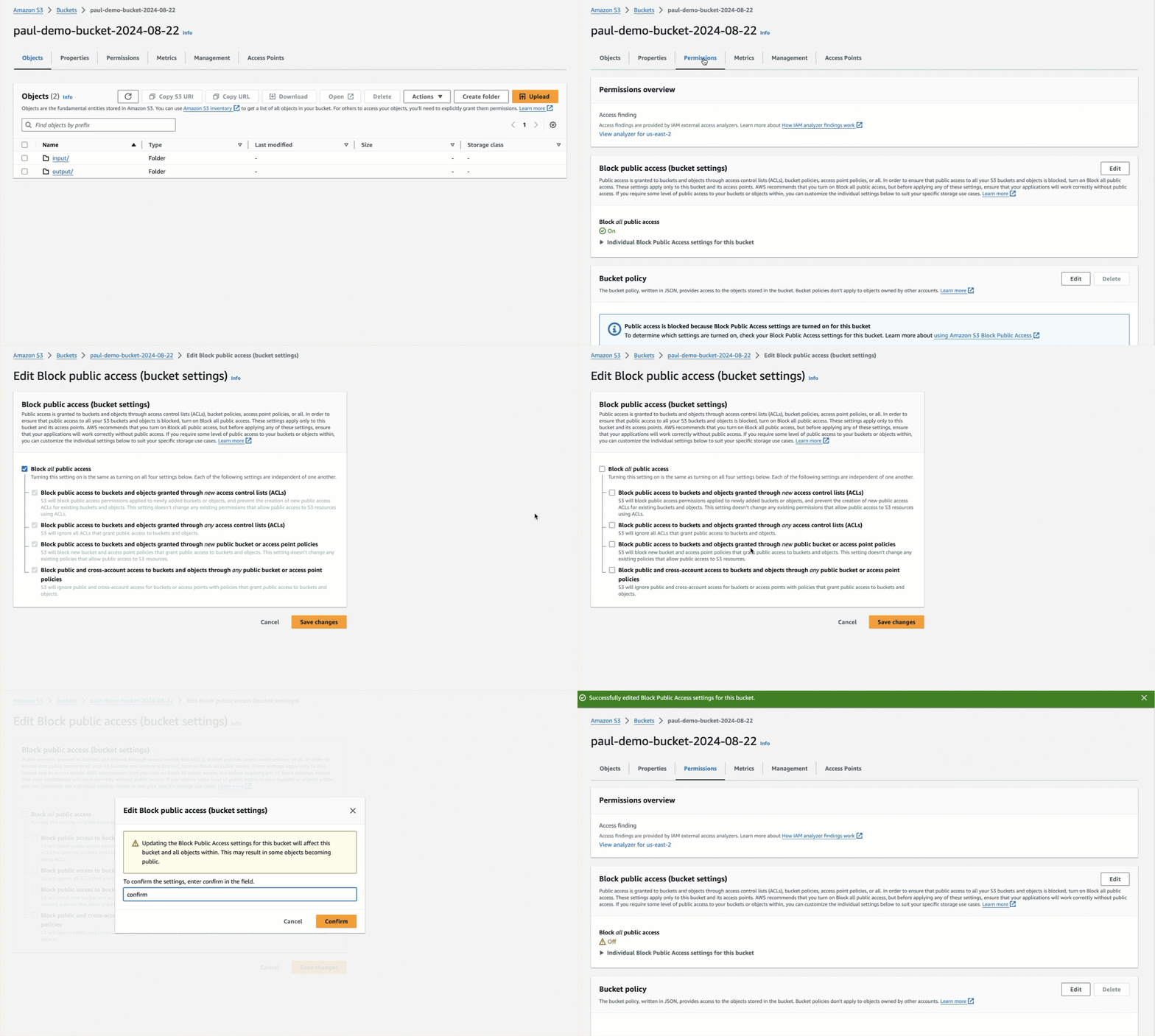
The preceding video does not show how to create an AWS account; enable anonymous access to the bucket (which is supported but
not recommended); or generate an AWS STS session token for temporary access, if required by your organization's security
requirements. For more information about requirements, see the following:
* An AWS account. [Create an AWS account](https://aws.amazon.com/free).
* An S3 bucket. [Create an S3 bucket](https://docs.aws.amazon.com/AmazonS3/latest/userguide/creating-bucket.html).
Additional approaches are in the following video and in the how-to sections at the end of this page.
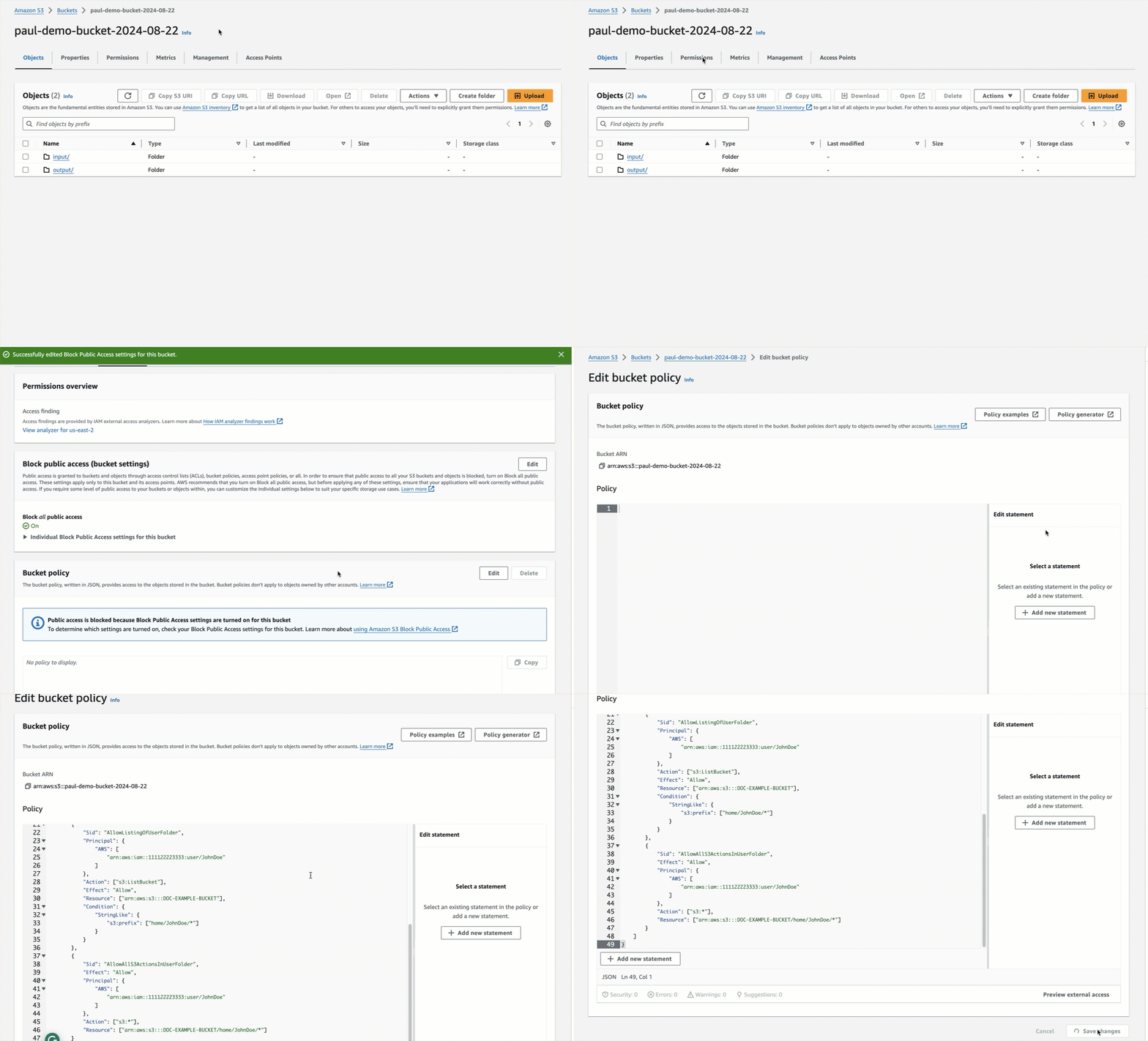
* Anonymous (supported but not recommended) or authenticated access to the bucket.
* [Enable anonymous bucket access](https://docs.aws.amazon.com/AmazonS3/latest/userguide/example-bucket-policies.html#example-bucket-policies-anonymous-user).
* [Enable authenticated bucket access](https://docs.aws.amazon.com/AmazonS3/latest/userguide/walkthrough1.html).
* For authenticated bucket read access, the authenticated AWS IAM user must have at minimum the permissions of `s3:ListBucket` and `s3:GetObject` for that bucket. [Learn how](https://docs.aws.amazon.com/AmazonS3/latest/userguide/example-policies-s3.html).
* For bucket write access, authenticated access to the bucket must be enabled (anonymous access must not be enabled), and the authenticated AWS IAM user must have at
minimum the permission of `s3:PutObject` for that bucket. [Learn how](https://docs.aws.amazon.com/AmazonS3/latest/userguide/example-policies-s3.html).
* For authenticated access, an AWS access key and secret access key for the authenticated AWS IAM user in the account.
[Create an AWS access key and secret access key](https://docs.aws.amazon.com/IAM/latest/UserGuide/id_credentials_access-keys.html#Using_CreateAccessKey).
* For authenticated access in untrusted environments or enhanced security scenarios, an AWS STS session token for temporary access, in addition to an AWS access key and secret access key. [Create a session token](https://docs.aws.amazon.com/IAM/latest/UserGuide/id_credentials_temp_request.html#api_getsessiontoken).
* If the target files are in the root of the bucket, the path to the bucket, formatted as `protocol://bucket/` (for example, `s3://my-bucket/`).
If the target files are in a folder, the path to the target folder in the S3 bucket, formatted as `protocol://bucket/path/to/folder/` (for example, `s3://my-bucket/my-folder/`).
* If the target files are in a folder, and authenticated bucket access is enabled, make sure the authenticated AWS IAM user has
authenticated access to the folder as well. [Enable authenticated folder access](https://docs.aws.amazon.com/AmazonS3/latest/userguide/example-bucket-policies.html#example-bucket-policies-folders).
To create an S3 source connector, see the following examples.
```python Python SDK theme={null}
import os
from unstructured_client import UnstructuredClient
from unstructured_client.models.operations import CreateSourceRequest
from unstructured_client.models.shared import (
CreateSourceConnector,
SourceConnectorType,
S3SourceConnectorConfigInput
)
with UnstructuredClient(api_key_auth=os.getenv("UNSTRUCTURED_API_KEY")) as client:
response = client.sources.create_source(
request=CreateSourceRequest(
create_source_connector=CreateSourceConnector(
name="",
type=SourceConnectorType.S3,
config=S3SourceConnectorConfigInput(
# For anonymous authentication:
anonymous=True,
# For AWS access key ID with AWS secret access key authentication:
key="",
secret="",
# For AWS STS token authentication:
token="",
remote_url="",
endpoint_url="",
recursive=
)
)
)
)
print(response.source_connector_information)
```
```bash curl theme={null}
curl --request 'POST' --location \
"$UNSTRUCTURED_API_URL/sources" \
--header 'accept: application/json' \
--header "unstructured-api-key: $UNSTRUCTURED_API_KEY" \
--header 'content-type: application/json' \
--data \
'{
"name": "",
"type": "s3",
"config": {
# For anonymous authentication:
"anonymous": true,
# For AWS access key ID with AWS secret access key authentication:
"key": "",
"secret": "",
# For AWS STS token authentication:
"token": "",
"remote_url": "",
"endpoint_url": "",
"recursive":
}
}'
```
Replace the preceding placeholders as follows:
* `` (*required*) - A unique name for this connector.
* For AWS access key ID with AWS secret access key authentication:
* `` - The AWS access key ID for the authenticated AWS IAM user (*required*).
* `` - The AWS secret access key corresponding to the preceding AWS access key ID (*required*).
* For AWS STS token authentication:
* `` - The AWS STS session token for temporary access (*required*).
* `` - A custom URL, if connecting to a non-AWS S3 bucket.
* `` (*required*) - The S3 URI to the bucket or folder, formatted as `s3://my-bucket/` (if the files are in the bucket’s root) or `s3://my-bucket/my-folder/`.
* For `recursive` (source connector only), set to `true` to access subfolders within the bucket. The default is `false` if not otherwise specified.
 * [Enable authenticated bucket access](https://docs.aws.amazon.com/AmazonS3/latest/userguide/walkthrough1.html).
 * For authenticated bucket read access, the authenticated AWS IAM user must have at minimum the permissions of `s3:ListBucket` and `s3:GetObject` for that bucket. [Learn how](https://docs.aws.amazon.com/AmazonS3/latest/userguide/example-policies-s3.html).
* For bucket write access, authenticated access to the bucket must be enabled (anonymous access must not be enabled), and the authenticated AWS IAM user must have at
minimum the permission of `s3:PutObject` for that bucket. [Learn how](https://docs.aws.amazon.com/AmazonS3/latest/userguide/example-policies-s3.html).
* For authenticated access, an AWS access key and secret access key for the authenticated AWS IAM user in the account.
[Create an AWS access key and secret access key](https://docs.aws.amazon.com/IAM/latest/UserGuide/id_credentials_access-keys.html#Using_CreateAccessKey).
* For authenticated access in untrusted environments or enhanced security scenarios, an AWS STS session token for temporary access, in addition to an AWS access key and secret access key. [Create a session token](https://docs.aws.amazon.com/IAM/latest/UserGuide/id_credentials_temp_request.html#api_getsessiontoken).
* If the target files are in the root of the bucket, the path to the bucket, formatted as `protocol://bucket/` (for example, `s3://my-bucket/`).
If the target files are in a folder, the path to the target folder in the S3 bucket, formatted as `protocol://bucket/path/to/folder/` (for example, `s3://my-bucket/my-folder/`).
* If the target files are in a folder, and authenticated bucket access is enabled, make sure the authenticated AWS IAM user has
authenticated access to the folder as well. [Enable authenticated folder access](https://docs.aws.amazon.com/AmazonS3/latest/userguide/example-bucket-policies.html#example-bucket-policies-folders).
To create an S3 source connector, see the following examples.
* For authenticated bucket read access, the authenticated AWS IAM user must have at minimum the permissions of `s3:ListBucket` and `s3:GetObject` for that bucket. [Learn how](https://docs.aws.amazon.com/AmazonS3/latest/userguide/example-policies-s3.html).
* For bucket write access, authenticated access to the bucket must be enabled (anonymous access must not be enabled), and the authenticated AWS IAM user must have at
minimum the permission of `s3:PutObject` for that bucket. [Learn how](https://docs.aws.amazon.com/AmazonS3/latest/userguide/example-policies-s3.html).
* For authenticated access, an AWS access key and secret access key for the authenticated AWS IAM user in the account.
[Create an AWS access key and secret access key](https://docs.aws.amazon.com/IAM/latest/UserGuide/id_credentials_access-keys.html#Using_CreateAccessKey).
* For authenticated access in untrusted environments or enhanced security scenarios, an AWS STS session token for temporary access, in addition to an AWS access key and secret access key. [Create a session token](https://docs.aws.amazon.com/IAM/latest/UserGuide/id_credentials_temp_request.html#api_getsessiontoken).
* If the target files are in the root of the bucket, the path to the bucket, formatted as `protocol://bucket/` (for example, `s3://my-bucket/`).
If the target files are in a folder, the path to the target folder in the S3 bucket, formatted as `protocol://bucket/path/to/folder/` (for example, `s3://my-bucket/my-folder/`).
* If the target files are in a folder, and authenticated bucket access is enabled, make sure the authenticated AWS IAM user has
authenticated access to the folder as well. [Enable authenticated folder access](https://docs.aws.amazon.com/AmazonS3/latest/userguide/example-bucket-policies.html#example-bucket-policies-folders).
To create an S3 source connector, see the following examples.