> ## Documentation Index
> Fetch the complete documentation index at: https://unstructured-53-docs-243-plugins.mintlify.site/llms.txt
> Use this file to discover all available pages before exploring further.
# Dropbox
This page was recently updated. What do you think about it? [Let us know!](https://smart-forms.saasjet.com/external?token=eyJhbGciOiJIUzI1NiIsInR5cCI6IkpXVCJ9.eyJjbGllbnRLZXkiOiIzZGQ5OTEzYy04Mzg1LTNkNDAtYWQ1MS03NmM0Nzg5YjAxOGUiLCJpYXQiOjE3MTQ0MzI1ODU5MjF9.m5gHGCOHt_UgOs-JCdTdEHRcQUNftvLGWeKzK2o2pQ4).
Connect Dropbox to your preprocessing pipeline, and use the Unstructured Ingest CLI or the Unstructured Ingest Python library to batch process all your documents and store structured outputs locally on your filesystem.
The requirements are as follows.
1. A [Dropbox account](https://www.dropbox.com/try/teams).
2. A Dropbox app for your Dropbox account. To create a Dropbox app, do the following:
a) Sign in to the [Dropbox Developers](https://www.dropbox.com/developers) portal with the same credentials as your Dropbox account.
b) Open your [App Console](https://www.dropbox.com/developers/apps).
c) Click **Create app**.
d) For **Choose an API**, select **Scoped access**.
e) For **Choose the type of access you need**, select **App folder**.
f) Enter a name for your app, and then click **Create app**.
g) On the app's **Permissions** tab, under **Files and folders**, check the boxes labelled **files.content.read** or **files.content.write** or both,
depending on whether you want to read files, write files, or both. Then click **Submit**.
h) On the app's **Settings** tab, note the value of the **App folder name** field. This is the name of the app folder that Dropbox will create under the `Apps` top-level folder in your Dropbox
account that the Dropbox app will use for access. If you change the value of **App folder name** field here, Dropbox will create an app folder with that name under the `Apps` top-level folder instead.
i) Under **OAuth 2**, next to **Generated access token**, click **Generate**. Copy the value of this access token. You should only click **Generate** after you have completed all of the preceding steps first.
This is because the access token is scoped to the specific app folder and settings at the time the access token is generated. If you change the app folder name or any of the permissions later,
you should regenerate the access token.
Access tokens are valid for **only four hours** after they are created. After this four-hour period, you can no longer use the expired access token.
Dropbox does not allow the creation of access tokens that are valid for more than four hours.
To replace an expired access token, you must first generate a *refresh token* for the corresponding access token. To learn how to generate an access token and its corresponding refresh token,
see [Replace an expired access token](#replace-an-expired-access-token), later in this article.
If you do not already have the corresponding refresh token for an existing access token, or if you lose a refresh token after you generate it,
you must generate a new access token and its corresponding refresh token.
For [Unstructured Ingest](/ingestion/overview), instead of continualy replacing expired access tokens yourself, you can have Unstructured do it for you as needed; just supply Unstructured
with the original access token and its corresponding refresh token along with the Dropbox app's **App key** and **App secret** values.
To learn how to supply these to Unstructured, look for mentions of "access token, "refresh token," "app key," and "app secret" in the connector settings later in this article.
For the [Unstructured UI](/ui/overview) or the [Unstructured API](/api-reference/overview), or if you want to otherwise use the refresh token to replace the expired access token yourself, currently you must manually replace expired access tokens.
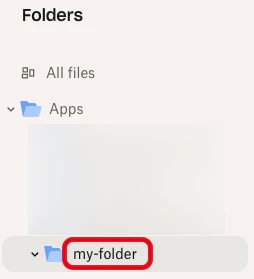
3. The app folder that your Dropbox app will use for access can be found in your Dropbox account under the `Apps` top-level folder. For example, if the value of the **App folder name**
field above is `my-folder`, then the app folder that your Dropbox app will use for access can be found under `https://dropbox.com/home/Apps/my-folder`
Your Dropbox app will *not* have access to upload or download files from the root of the app folder. Instead, you *must* create a subfolder inside of the app folder for your Dropbox
app to upload or download files from. You will use the name of that subfolder when specifying your remote URL in the next step. For example, if your Dropbox app uses an app folder named `my-folder`
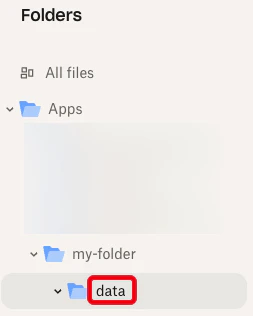
for access within the `Apps` top-level folder, and you create a subfolder named `data` within the `my-folder` app folder, then the subfolder that your Dropbox app will upload and download files from
can be found under `https://dropbox.com/home/Apps/my-folder/data`
4. Note the remote URL to your subfolder inside of the app folder, which takes the format `dropbox://`. For example,
if your Dropbox app uses an app folder named `my-folder` for access within the `Apps` top-level folder, and you create a subfolder named `data` within the `my-folder` app folder, then
the remote URL is `dropbox://data`
## Replace an expired access token
Dropbox app access tokens are valid for **only four hours**. After this time, you can no longer use the expired access token.
To replace an old, expired access token with a new, valid one, do the following:
1. Get the app key and app secret values for your Dropbox app. To do this:
a) Sign in to the [Dropbox Developers](https://www.dropbox.com/developers) portal with the same credentials as your Dropbox account.
b) Open your [App Console](https://www.dropbox.com/developers/apps).
c) Click your Dropbox app's icon.
d) On the **Settings** tab, next to **App key**, copy the value of the app key.
e) Next to **App secret**, click **Show**, and then copy the value of the app secret.
2. Use your web browser to browse to the following URL, replacing `` with the app key for your Dropbox app:
```text theme={null}
https://www.dropbox.com/oauth2/authorize?client_id=&response_type=code&token_access_type=offline
```
3. Click **Continue**.
4. Click **Allow**.
5. In the **Access code generated** tile, copy the access code that is shown.
6. Use the [curl](https://curl.se/) utility in your Terminal or Command Prompt, or use a REST API client such as
[Postman](https://www.postman.com/product/api-client/), to make the following REST API call, replacing the following placeholders:
* Replace `` with the access code that you just copied.
* Replace `` with the app key for your Dropbox app.
* Replace `` with the app secret for your Dropbox app.
```text theme={null}
curl https://api.dropbox.com/oauth2/token \
--data code= \
--data grant_type=authorization_code \
--user :
```
7. In the response, copy the following two values:
* The value of `access_token` (starting with the characters `sl`) is the new, valid access token. In your Dropbox connector settings, replace the old,
expired access token value with this new, valid access token value.
* The value of `refresh_token` is the refresh token that you can use to replace this access token much faster and easier next time.
If you lose this refresh token, you must go back to Step 2.
For [Unstructured Ingest](/ingestion/overview), if you want Unstructured to use this refresh token to automatically replace the expired access token instead of replacing it yourself, then
simply supply Unstructured with these `access_token` and `refresh_token` values, along with the `` and `` values
as described earlier in this procedure, and then stop here.
8. For the [Unstructured UI](/ui/overview) or the [Unstructured API](/api-reference/overview), or if you want to otherwise use the refresh token to replace the expired access token yourself, make the following REST API call, replacing the following placeholders:
* Replace `` with the refresh token.
* Replace `` with the app key for your Dropbox app.
* Replace `` with the app secret for your Dropbox app.
```text theme={null}
curl https://api.dropbox.com/oauth2/token \
--data refresh_token= \
--data grant_type=refresh_token \
--data client_id= \
--data client_secret=
```
9. In the response, copy the following two values:
* The value of `access_token` (starting with the characters `sl`) is the new, valid access token. In the connector, replace the old,
expired access token value with this new, valid access token value.
* The value of `refresh_token` is the new, valid refresh token. To replace the expired access token yourself, go back to Step 8.
The Dropbox connector dependencies:
```bash CLI, Python theme={null}
pip install "unstructured-ingest[dropbox]"
```
You might also need to install additional dependencies, depending on your needs. [Learn more](/ingestion/ingest-dependencies).
The following environment variables:
* `DROPBOX_REMOTE_URL` - The remote URL to the target subfolder inside of the app folder for the Dropbox app, represented by `--remote-url` (CLI) or `remote_url` (Python).
* `DROPBOX_ACCESS_TOKEN` - The value of the access token for the Dropbox app that is associated with the target app folder, represented by `--token` (CLI) or `token` (Python).
To have Unstructured refresh expired Dropbox App access tokens on your behalf, you must also provide the following environment variables:
* `DROPBOX_REFRESH_TOKEN` - The value of the refresh token for the corresponding access token, represented by `--refresh-token` (CLI) or `refresh_token` (Python).
* `DROPBOX_APP_KEY` - The app key for the Dropbox app, represented by `--app-key` (CLI) or `app_key` (Python).
* `DROPBOX_APP_SECRET` - The app secret for the Dropbox app, represented by `--app-secret` (CLI) or `app_secret` (Python).
Now call the Unstructured Ingest CLI or the Unstructured Ingest Python library. The destination connector can be any of the ones supported. This example uses the local destination connector.
This example sends data to Unstructured for processing by default. To process data locally instead, see the instructions at the end of this page.
```bash CLI theme={null}
#!/usr/bin/env bash
unstructured-ingest \
dropbox \
--remote-url $DROPBOX_REMOTE_URL \
--output-dir $LOCAL_FILE_OUTPUT_DIR \
--token $DROPBOX_ACCESS_TOKEN \
--refresh-token $DROPBOX_REFRESH_TOKEN \
--app-key $DROPBOX_APP_KEY \
--app-secret $DROPBOX_APP_SECRET \
--num-processes 2 \
--recursive \
--verbose \
--partition-by-api \
--partition-endpoint $UNSTRUCTURED_API_URL \
--api-key $UNSTRUCTURED_API_KEY \
--strategy hi_res \
--additional-partition-args="{\"split_pdf_page\":\"true\", \"split_pdf_allow_failed\":\"true\", \"split_pdf_concurrency_level\": 15}" \
```
```python Python Ingest theme={null}
import os
from unstructured_ingest.pipeline.pipeline import Pipeline
from unstructured_ingest.interfaces import ProcessorConfig
from unstructured_ingest.processes.connectors.fsspec.dropbox import (
DropboxIndexerConfig,
DropboxDownloaderConfig,
DropboxAccessConfig,
DropboxConnectionConfig
)
from unstructured_ingest.processes.connectors.local import (
LocalConnectionConfig,
LocalUploaderConfig
)
from unstructured_ingest.processes.partitioner import PartitionerConfig
from unstructured_ingest.processes.chunker import ChunkerConfig
from unstructured_ingest.processes.embedder import EmbedderConfig
# Chunking and embedding are optional.
if __name__ == "__main__":
Pipeline.from_configs(
context=ProcessorConfig(),
indexer_config=DropboxIndexerConfig(remote_url=os.getenv("DROPBOX_REMOTE_URL")),
downloader_config=DropboxDownloaderConfig(download_dir=os.getenv("LOCAL_FILE_DOWNLOAD_DIR")),
source_connection_config=DropboxConnectionConfig(
access_config=DropboxAccessConfig(
token=os.getenv("DROPBOX_ACCESS_TOKEN"),
refresh_token=os.getenv("DROPBOX_REFRESH_TOKEN"),
app_key=os.getenv("DROPBOX_APP_KEY"),
app_secret=os.getenv("DROPBOX_APP_SECRET")
)
),
partitioner_config=PartitionerConfig(
partition_by_api=True,
api_key=os.getenv("UNSTRUCTURED_API_KEY"),
partition_endpoint=os.getenv("UNSTRUCTURED_API_URL"),
strategy="hi_res",
additional_partition_args={
"split_pdf_page": True,
"split_pdf_allow_failed": True,
"split_pdf_concurrency_level": 15
}
),
chunker_config=ChunkerConfig(chunking_strategy="by_title"),
embedder_config=EmbedderConfig(embedding_provider="huggingface"),
uploader_config=LocalUploaderConfig(output_dir=os.getenv("LOCAL_FILE_OUTPUT_DIR"))
).run()
```
For the Unstructured Ingest CLI and the Unstructured Ingest Python library, you can use the `--partition-by-api` option (CLI) or `partition_by_api` (Python) parameter to specify where files are processed:
* To do local file processing, omit `--partition-by-api` (CLI) or `partition_by_api` (Python), or explicitly specify `partition_by_api=False` (Python).
Local file processing does not use an Unstructured API key or API URL, so you can also omit the following, if they appear:
* `--api-key $UNSTRUCTURED_API_KEY` (CLI) or `api_key=os.getenv("UNSTRUCTURED_API_KEY")` (Python)
* `--partition-endpoint $UNSTRUCTURED_API_URL` (CLI) or `partition_endpoint=os.getenv("UNSTRUCTURED_API_URL")` (Python)
* The environment variables `UNSTRUCTURED_API_KEY` and `UNSTRUCTURED_API_URL`
* To send files to the [Unstructured Partition Endpoint](/api-reference/partition/overview) for processing, specify `--partition-by-api` (CLI) or `partition_by_api=True` (Python).
Unstructured also requires an Unstructured API key and API URL, by adding the following:
* `--api-key $UNSTRUCTURED_API_KEY` (CLI) or `api_key=os.getenv("UNSTRUCTURED_API_KEY")` (Python)
* `--partition-endpoint $UNSTRUCTURED_API_URL` (CLI) or `partition_endpoint=os.getenv("UNSTRUCTURED_API_URL")` (Python)
* The environment variables `UNSTRUCTURED_API_KEY` and `UNSTRUCTURED_API_URL`, representing your API key and API URL, respectively.
You must specify the API URL only if you are not using the default API URL for Unstructured Ingest, for example, if you are using a version of the Unstructured API that is hosted on your own compute infrastructure.
The default API URL for Unstructured Ingest is `https://api.unstructuredapp.io/general/v0/general`, which is the API URL for the [Unstructured Partition Endpoint](/api-reference/partition/overview).
If you do not have an API key, [get one now](/api-reference/partition/overview).
If the Unstructured API is hosted on your own compute infrastructure, the process
for generating Unstructured API keys, and the Unstructured API URL that you use, are different.
For details, contact Unstructured Sales at
[sales@unstructured.io](mailto:sales@unstructured.io).