> ## Documentation Index
> Fetch the complete documentation index at: https://unstructured-53-docs-243-plugins.mintlify.site/llms.txt
> Use this file to discover all available pages before exploring further.
# Unstructured
Unstructured provides a platform and tools to ingest and process unstructured documents for Retrieval Augmented Generation (RAG) and model fine-tuning.
This 60-second video describes more about what Unstructured does and its benefits:
This 40-second video demonstrates a simple use case that Unstructured helps solve:
Unstructured offers the Unstructured user interface (UI) and the Unstructured API. Read on to learn more.
## Unstructured user interface (UI)
No-code UI. Production-ready. Pay as you go. [Learn more](/ui/overview).
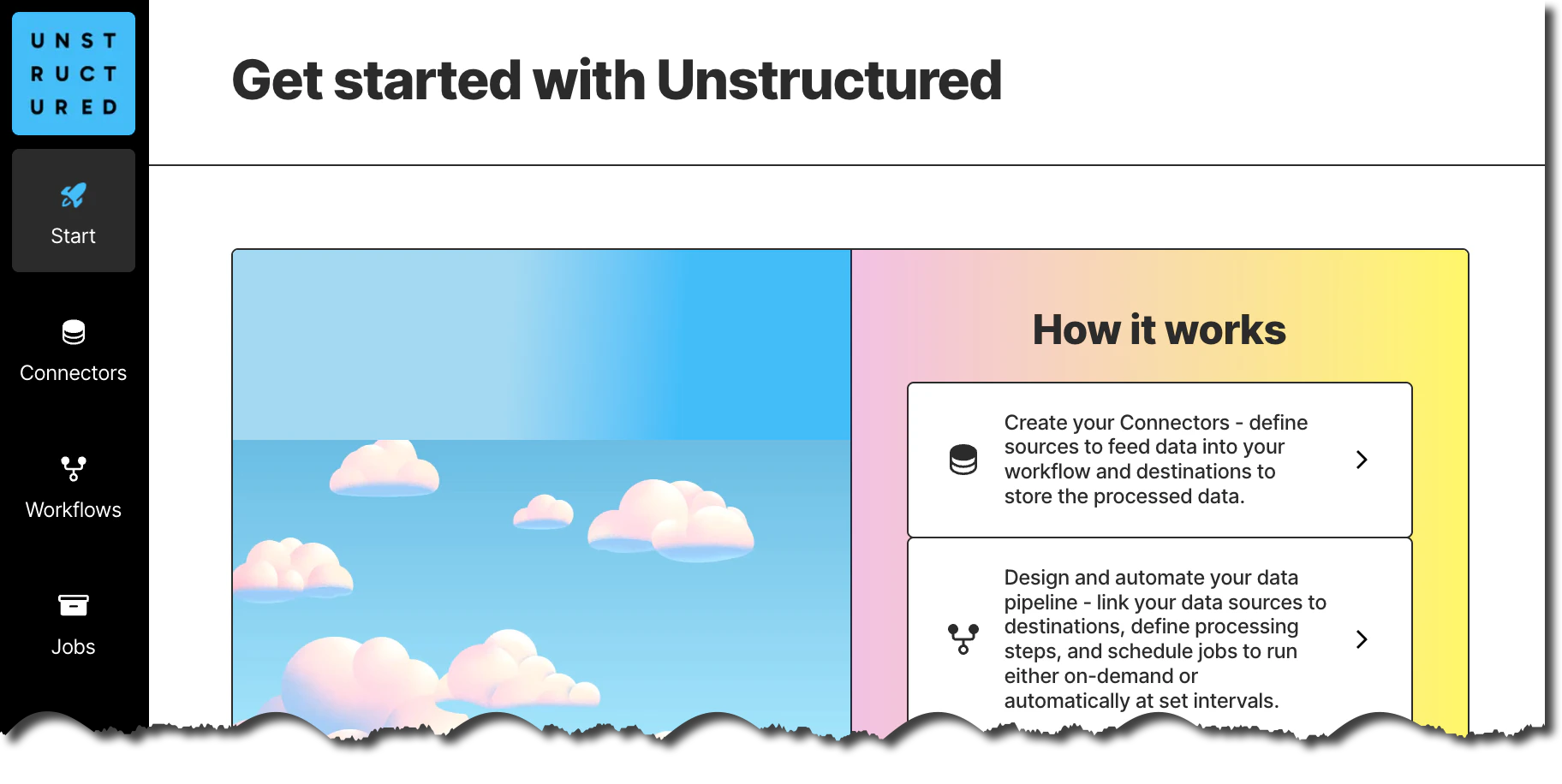
Here is a screenshot of the Unstructured UI **Start** page:
This 90-second video provides a brief overview of the Unstructured UI:
To start using the Unstructured UI right away, skip ahead to the [quickstart](#unstructured-ui-quickstart).
## Unstructured API
Use scripts or code. Production-ready. Pay as you go. [Learn more](/api-reference/overview).
The Unstructured API consists of two parts:
* The [Unstructured Workflow Endpoint](/api-reference/overview) enables a full range of partitioning, chunking, embedding, and
enrichment options for your files and data. It is designed to batch-process files and data in remote locations; send processed results to
various storage, databases, and vector stores; and use the latest and highest-performing models on the market today. It has built-in logic
to deliver the highest quality results at the lowest cost. [Learn more](/api-reference/overview).
* The [Unstructured Partition Endpoint](/api-reference/partition/overview) is intended for rapid prototyping of Unstructured's
various partitioning strategies, with limited support for chunking. It is designed to work only with processing of local files, one file
at a time. Use the [Unstructured Workflow Endpoint](/api-reference/overview) for production-level scenarios, file processing in
batches, files and data in remote locations, generating embeddings, applying post-transform enrichments, using the latest and
highest-performing models, and for the highest quality results at the lowest cost. [Learn more](/api-reference/partition/overview).
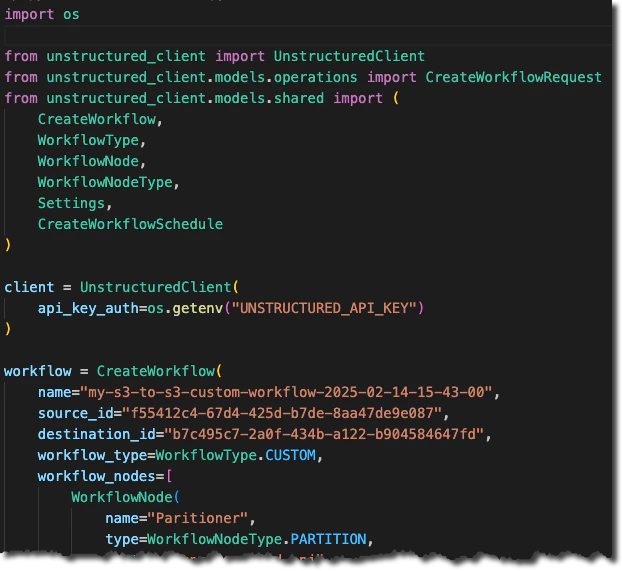
Here is a screenshot of some Python code that calls the Unstructured Workflow Endpoint:
To start using the Unstructured Workflow Endpoint right away, skip ahead to the [quickstart](#unstructured-workflow-endpoint-quickstart).
***
## Supported file types
Unstructured supports processing of the following file types:
By file extension:
| File extension |
| -------------- |
| `.bmp` |
| `.csv` |
| `.doc` |
| `.docx` |
| `.eml` |
| `.epub` |
| `.heic` |
| `.html` |
| `.jpeg` |
| `.png` |
| `.md` |
| `.msg` |
| `.odt` |
| `.org` |
| `.p7s` |
| `.pdf` |
| `.png` |
| `.ppt` |
| `.pptx` |
| `.rst` |
| `.rtf` |
| `.tiff` |
| `.txt` |
| `.tsv` |
| `.xls` |
| `.xlsx` |
| `.xml` |
By file type:
| Category | File types |
| ----------------- | ----------------------------------------- |
| CSV | `.csv` |
| E-mail | `.eml`, `.msg`, `.p7s` |
| EPUB | `.epub` |
| Excel | `.xls`, `.xlsx` |
| HTML | `.html` |
| Image | `.bmp`, `.heic`, `.jpeg`, `.png`, `.tiff` |
| Markdown | `.md` |
| Org Mode | `.org` |
| Open Office | `.odt` |
| PDF | `.pdf` |
| Plain text | `.txt` |
| PowerPoint | `.ppt`, `.pptx` |
| reStructured Text | `.rst` |
| Rich Text | `.rtf` |
| TSV | `.tsv` |
| Word | `.doc`, `.docx` |
| XML | `.xml` |
***
## Unstructured UI quickstart
This quickstart uses a no-code, point-and-click user interface in your web browser to get all of your data RAG-ready. Data is processed on Unstructured-hosted compute resources.
The requirements are as follows.
* A compatible source (input) location that contains your data for Unstructured to process. [See the list of supported source types](/ui/connectors#sources).
* For document-based source locations, compatible files in that location. [See the list of supported file types](/ui/supported-file-types). If you do not have any files available, you can download some from the [example-docs](https://github.com/Unstructured-IO/unstructured-ingest/tree/main/example-docs) folder in the Unstructured repo on GitHub.
* A compatible destination (output) location for Unstructured to put the processed data. [See the list of supported destination types](/ui/connectors#destinations).
1. Go to [https://platform.unstructured.io](https://platform.unstructured.io) and use your email address, Google account, or GitHub account to
sign up for an Unstructured account (if you do not already have one) and sign into the account at the same time. The
[Unstructured user interface (UI)](/ui/overview) appears, and you can start using it right away.
2. If you also want to use the [Unstructured API](/api-reference/overview) later, you must get your API key first:
a. In the Unstructured UI, click **API Keys** on the sidebar.
b. Click **Generate API Key**.
c. Follow the on-screen instructions to finish generating the key.
d. Click the **Copy** icon next to your new key to add the key to your system's clipboard. If you lose this key, simply return and click the **Copy** icon again.
By following the preceding instructions, you are signed up for a [Developer](https://unstructured.io/developers) pay per page account by default.
To save money, consider switching to a [Subscribe & Save](https://unstructured.io/subscribeandsave) account instead. To save even more money,
consider switching to an [Enterprise](https://unstructured.io/enterprise) account instead.
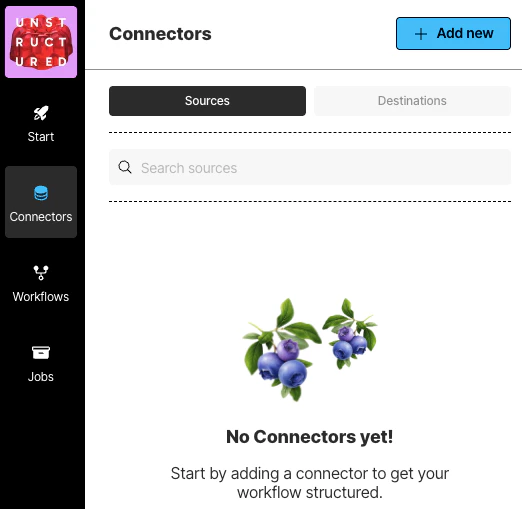
1. From your Unstructured dashboard, in the sidebar, click **Connectors**.
2. Click **Sources**.
3. Cick **New** or **Create Connector**.
4. For **Name**, enter some unique name for this connector.
5. In the **Provider** area, click the source location type that matches yours.
6. Click **Continue**.
7. Fill in the fields with the appropriate settings. [Learn more](/ui/sources/overview).
8. If a **Continue** button appears, click it, and fill in any additional settings fields.
9. Click **Save and Test**.
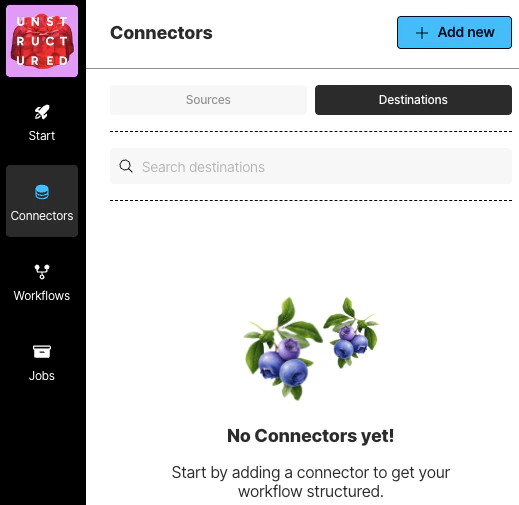
1. In the sidebar, click **Connectors**.
2. Click **Destinations**.
3. Cick **New** or **Create Connector**.
4. For **Name**, enter some unique name for this connector.
5. In the **Provider** area, click the destination location type that matches yours.
6. Click **Continue**.
7. Fill in the fields with the appropriate settings. [Learn more](/ui/sources/overview).
8. If a **Continue** button appears, click it, and fill in any additional settings fields.
9. Click **Save and Test**.
1. In the sidebar, click **Workflows**.
2. Click **New Workflow**.
3. Next to **Build it for Me**, click **Create Workflow**.
If a radio button appears instead of **Build it for Me**, select it, and then click **Continue**.
4. For **Workflow Name**, enter some unique name for this workflow.
5. In the **Sources** dropdown list, select your source location from Step 3.
6. In the **Destinations** dropdown list, select your destination location from Step 4.
You can select multiple source and destination locations. Files will be ingested from all of the selected source locations, and the processed data will be delivered to all of the selected destination locations.
7. Click **Continue**.
8. The **Reprocess All** box applies only to blob storage connectors such as the Amazon S3, Azure Blob Storage, and Google Cloud Storage connectors:
* Checking this box reprocesses all documents in the source location on every workflow run.
* Unchecking this box causes new documents that have been added to the source location, as well as existing documents in the source location that have had their contents or titles changed, since the last workflow run to be processed on future runs. Other previously processed documents are not processed again.
9. Click **Continue**.
10. If you want this workflow to run on a schedule, in the **Repeat Run** dropdown list, select one of the scheduling options, and fill in the scheduling settings. Otherwise, select **Don't repeat**.
11. Click **Complete**.
1. If you did not choose to run this workflow on a schedule in Step 5, you can run the workflow now: on the sidebar, click **Workflows**.
2. Next to your workflow from Step 5, click **Run**.
1. In the sidebar, click **Jobs**.
2. In the list of jobs, wait for the job's **Status** to change to **Finished**.
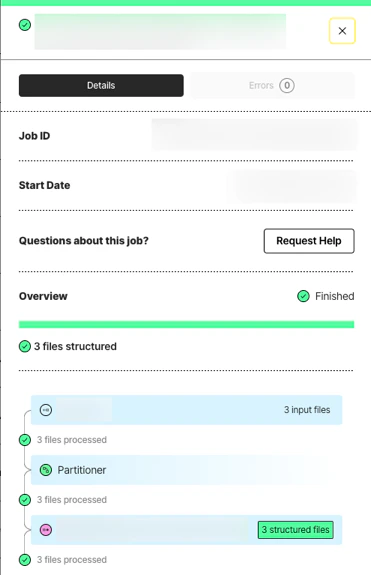
3. Click the row for the job.
4. After **Overview** displays **Finished**, go to the next Step.
Go to your destination location to view the processed data.
[Learn more about the Unstructured UI](/ui/overview).
***
## Unstructured Workflow Endpoint quickstart
This quickstart uses the Unstructured Python SDK to call the Unstructured Workflow Endpoint to get your data RAG-ready. The Python code for this
quickstart is in a remote hosted Google Collab notebook. Data is processed on Unstructured-hosted compute resources.
The requirements are as follows:
* A compatible source (input) location that contains your data for Unstructured to process. [See the list of supported source types](/ui/connectors#sources).
This quickstart uses an Amazon S3 bucket as the source location. If you use a different source type, you will need to modify the quickstart notebook accordingly.
* For document-based source locations, compatible files in that location. [See the list of supported file types](/ui/supported-file-types). If you do not have any files available, you can download some from the [example-docs](https://github.com/Unstructured-IO/unstructured-ingest/tree/main/example-docs) folder in the `Unstructured-IO/unstructured-ingest` repository in GitHub.
* A compatible destination (output) location for Unstructured to put the processed data. [See the list of supported destination types](/ui/connectors#destinations).
For this quickstart's destination location, a different folder in the same Amazon S3 bucket as the source location is used. If you use a different destination S3 bucket or a different destination type, you will need to modify the quickstart notebook accordingly.
1. Go to [https://platform.unstructured.io](https://platform.unstructured.io) and use your email address, Google account, or GitHub account to
sign up for an Unstructured account (if you do not already have one) and sign into the account at the same time. The
[Unstructured user interface (UI)](/ui/overview) appears.
2. Get your Unstructured API key:
a. In the Unstructured UI, click **API Keys** on the sidebar.
b. Click **Generate API Key**.
c. Follow the on-screen instructions to finish generating the key.
d. Click the **Copy** icon next to your new key to add the key to your system's clipboard. If you lose this key, simply return and click the **Copy** icon again.
By following the preceding instructions, you are signed up for a [Developer](https://unstructured.io/developers) pay per page account by default.
To save money, consider switching to a [Subscribe & Save](https://unstructured.io/subscribeandsave) account instead. To save even more money,
consider switching to an [Enterprise](https://unstructured.io/enterprise) account instead.
This quickstart uses an Amazon S3 bucket as both the source location and the destination location.
(You can use other source and destination types that are supported by Unstructured.
If you use a different source or destination type, or if you use a different S3 bucket for the destination location,
you will need to modify the quickstart notebook accordingly.)
Inside of the S3 bucket, a folder named `input` represents the
source location. This is where your files to be processed will be stored.
The S3 URI to the source location will be `s3:///input`.
Inside of the same S3 bucket, a folder inside named `output` represents the destination location. This
is where Unstructured will put the processed data.
The S3 URI to the destination location will be `s3:///output`.
Learn how to [create an S3 bucket and set it up for Unstructured](/api-reference/workflow/sources/s3). (Do not run the Python SDK code or REST commands at the end of those setup instructions.)
After your S3 bucket is created and set up, follow the instructions in this [quickstart notebook](https://colab.research.google.com/drive/13f5C9WtUvIPjwJzxyOR3pNJ9K9vnF4ww).
After you run the quickstart notebook, go to your destination location to view the processed data.
[Learn more about the Unstructured API](/api-reference/overview).
***
## Get in touch
If you can't find the information you're looking for in the documentation, or if you need help,
[contact us directly](https://unstructured.io/contact),
or [join our Slack](https://short.unstructured.io/pzw05l7) where our team and community can help you.
 This 90-second video provides a brief overview of the Unstructured UI:
 1. From your Unstructured dashboard, in the sidebar, click **Connectors**.
2. Click **Sources**.
3. Cick **New** or **Create Connector**.
4. For **Name**, enter some unique name for this connector.
5. In the **Provider** area, click the source location type that matches yours.
6. Click **Continue**.
7. Fill in the fields with the appropriate settings. [Learn more](/ui/sources/overview).
8. If a **Continue** button appears, click it, and fill in any additional settings fields.
9. Click **Save and Test**.
1. From your Unstructured dashboard, in the sidebar, click **Connectors**.
2. Click **Sources**.
3. Cick **New** or **Create Connector**.
4. For **Name**, enter some unique name for this connector.
5. In the **Provider** area, click the source location type that matches yours.
6. Click **Continue**.
7. Fill in the fields with the appropriate settings. [Learn more](/ui/sources/overview).
8. If a **Continue** button appears, click it, and fill in any additional settings fields.
9. Click **Save and Test**.
 1. In the sidebar, click **Connectors**.
2. Click **Destinations**.
3. Cick **New** or **Create Connector**.
4. For **Name**, enter some unique name for this connector.
5. In the **Provider** area, click the destination location type that matches yours.
6. Click **Continue**.
7. Fill in the fields with the appropriate settings. [Learn more](/ui/sources/overview).
8. If a **Continue** button appears, click it, and fill in any additional settings fields.
9. Click **Save and Test**.
1. In the sidebar, click **Connectors**.
2. Click **Destinations**.
3. Cick **New** or **Create Connector**.
4. For **Name**, enter some unique name for this connector.
5. In the **Provider** area, click the destination location type that matches yours.
6. Click **Continue**.
7. Fill in the fields with the appropriate settings. [Learn more](/ui/sources/overview).
8. If a **Continue** button appears, click it, and fill in any additional settings fields.
9. Click **Save and Test**.
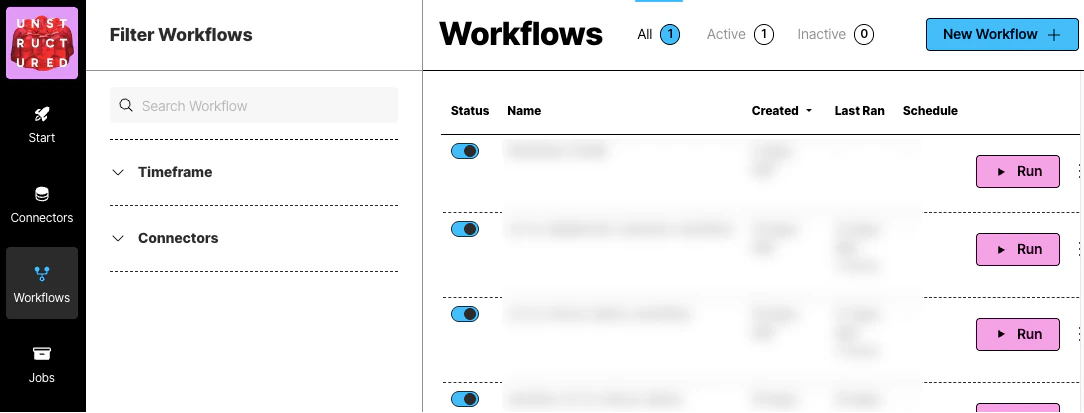 1. In the sidebar, click **Workflows**.
2. Click **New Workflow**.
3. Next to **Build it for Me**, click **Create Workflow**.
1. In the sidebar, click **Workflows**.
2. Click **New Workflow**.
3. Next to **Build it for Me**, click **Create Workflow**.
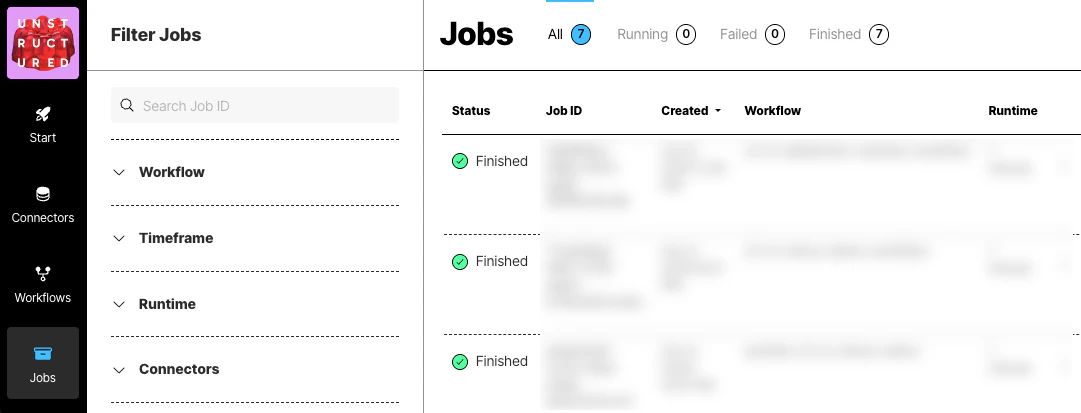
 1. In the sidebar, click **Jobs**.
2. In the list of jobs, wait for the job's **Status** to change to **Finished**.
3. Click the row for the job.
4. After **Overview** displays **Finished**, go to the next Step.
1. In the sidebar, click **Jobs**.
2. In the list of jobs, wait for the job's **Status** to change to **Finished**.
3. Click the row for the job.
4. After **Overview** displays **Finished**, go to the next Step.